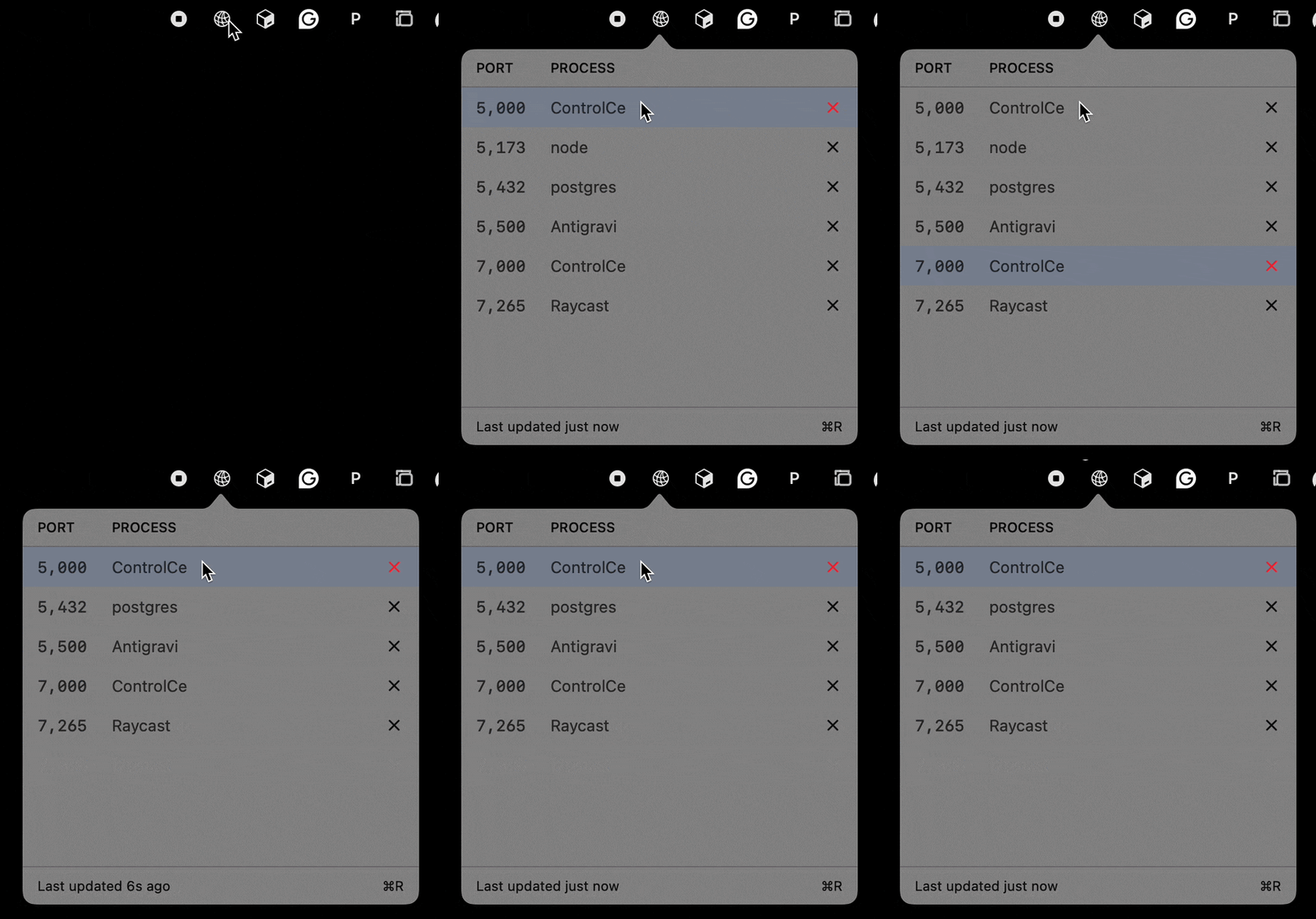
Instant Discovery.
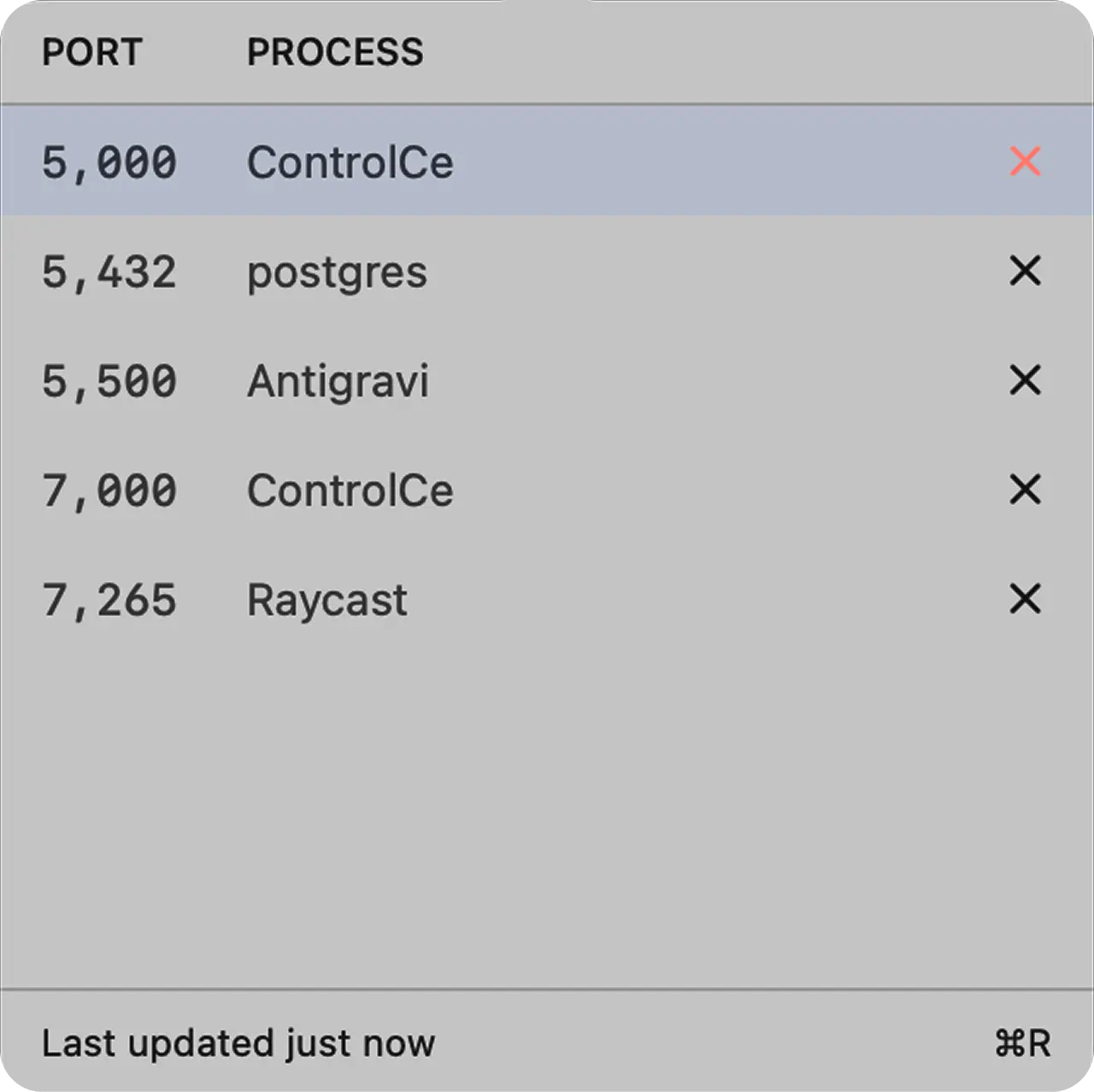
Instantly view all processes listening on local ports. PortWatcher scans your system continuously with zero overhead, giving you a real-time overview of your development environment. No loading spinners. No terminal commands.
The fastest macOS menu bar app to kill localhost ports. Stop running `lsof` and `kill -9` manually. PortWatcher instantly finds what's listening on 3000-9999 and lets you terminate it from the menu bar.
Notarized by Apple · Distributed outside App Store
Requires macOS 13 Ventura or later. Notarized by Apple. Free download — no subscriptions.
Instantly view all processes listening on local ports. PortWatcher scans your system continuously with zero overhead, giving you a real-time overview of your development environment. No loading spinners. No terminal commands.
PortWatcher doesn't just nuke your processes. It issues a polite
SIGTERM first, waits up to 2 seconds for graceful exit, and falls back to
SIGKILL only if necessary.
Every developer knows the pain of trying to start a dev server and getting "port already in use." PortWatcher solves this specific problem perfectly, acting as a specialized tool for your daily development workflow.
Don't guess what "node" or "python" refers to. PortWatcher extracts the working directory for each process, so you know exactly which project is hogging the port before you kill it.
Navigate the entire port list with arrow keys. Tap 'K' or Backspace to terminate the selected process instantly. Your hands never need to leave the keyboard.